




Selecting the Initial Print Job List
Follow the procedure below to set the initial Print Jobs screen, and to show it.
Selecting the Initial Print Job List
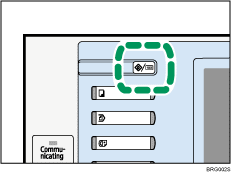
 Press the [User Tools/Counter] key.
 Press [Printer Features].
The Printer Features menu appears.
 On the [System] tab, press [Initial Print Job List].
 Select either [Complete List] or [List Per User ID].
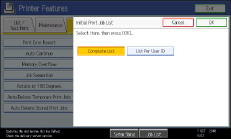
After configuring the settings, the selected type of print job list is displayed.
Displaying a Print Job List
Press the [Printer] key.
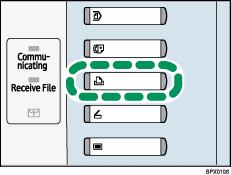
Press [Print Jobs].
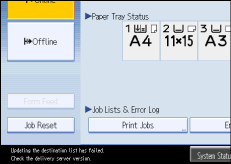
Either the Complete List or List Per User ID screen appears.
Complete List
If you select [Complete List] from [Initial Print Job List], the following screen appears:
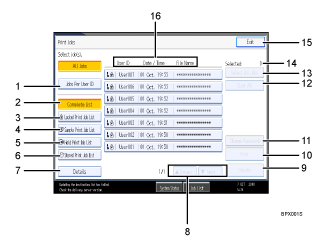
[Jobs Per User ID]
Displays List Per User ID.
[Complete List]
Displays all files stored in the machine.
[Locked Print Job List]
Displays only Locked Print files stored in the machine.
[Sample Print Job List]
Displays only Sample Print files stored in the machine.
[Hold Print Job List]
Displays only Hold Print files stored in the machine.
[Stored Print Job List]
Displays only Stored Print files stored in the machine.
[Details]
Displays details about a selected file.
[
 Previous]/[
 Next]
Next]If the list of files does not fit on the screen, scroll up or down to view the list.
[Delete]
Deletes a selected file.
[Print]
Prints a selected file.
[Change Password]
Changes or deletes the password of a file if a password is set. To change the password, press [Change Password], enter the current password, and then enter the new password on the confirmation screen. To delete the password, press [Change Password], leave the entering/confirming a new password box blank, and then press [OK].
You can also set passwords to the Stored Print files that do not currently have passwords.
[Clear All]
Clears all selections.
[Select All Jobs]
Selects all files stored in the machine.
Selected:
Displays number of the files selected.
[Exit]
Returns to the Printer screen.
User ID, Date/Time: , and File Name: display
Displays the time when the instruction to print the stored files was entered, the User IDs, and the file names.
List Per User ID
If you select [List Per User ID] from [Initial Print Job List], the following screen appears:
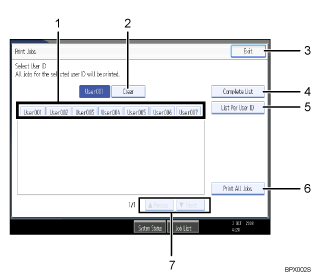
[User ID]
Displays the User IDs who sent files to the machine.
[Clear]
Clears a selection.
[Exit]
Returns to the Printer screen.
[Complete List]
Displays all print jobs.
[List Per User ID]
Displays the print job list of each ID.
[Print All Jobs]
Prints all selected type of files sent by the user ID.
[
Previous]/[Next]If the list of files does not fit on the screen, scroll up or down to view the list.

Multiple files can be selected on the Print Jobs screen. To clear selection, press the selected print jobs again.
The display is not updated if a new file is stored while the list of stored files is displayed. To update the display, press [Exit] to return to the Printer screen, and then press [Print Jobs] again.
If a large number of print jobs are stored in the machine, processing may slow down temporarily, depending on which functions are used.
If you press [List Per User ID] in the Complete List screen, the screen switches to the List Per User ID screen where [Back] appears at the bottom right. Press [Back] to switch to the Complete List screen.
For details about Sample Print, Locked Print, Hold Print, and Stored Print, see "Printing from the Print Job Screen".


